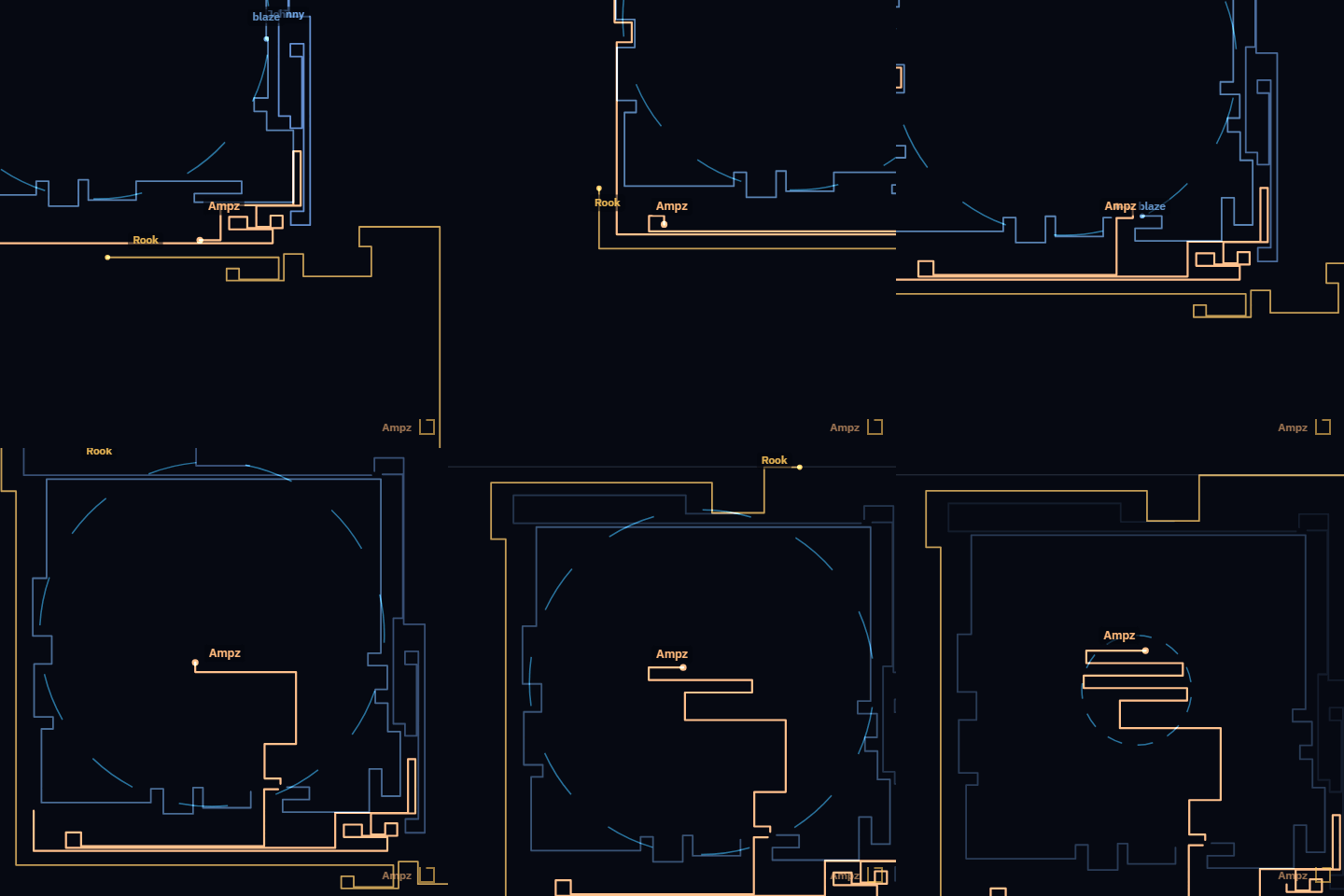
Replays, live matches, and clips
Watch any saved match back in the browser, follow matches as they are played, and cut the moment you want into a GIF or MP4.
Added 2D match replays. Matches can be watched live while they are being played, and typing /clip in game creates a clip that can be shared and downloaded.
Replays
Open a match report and click 2D Replay, or click 2D next to any event in the match
timeline to jump straight to that moment.
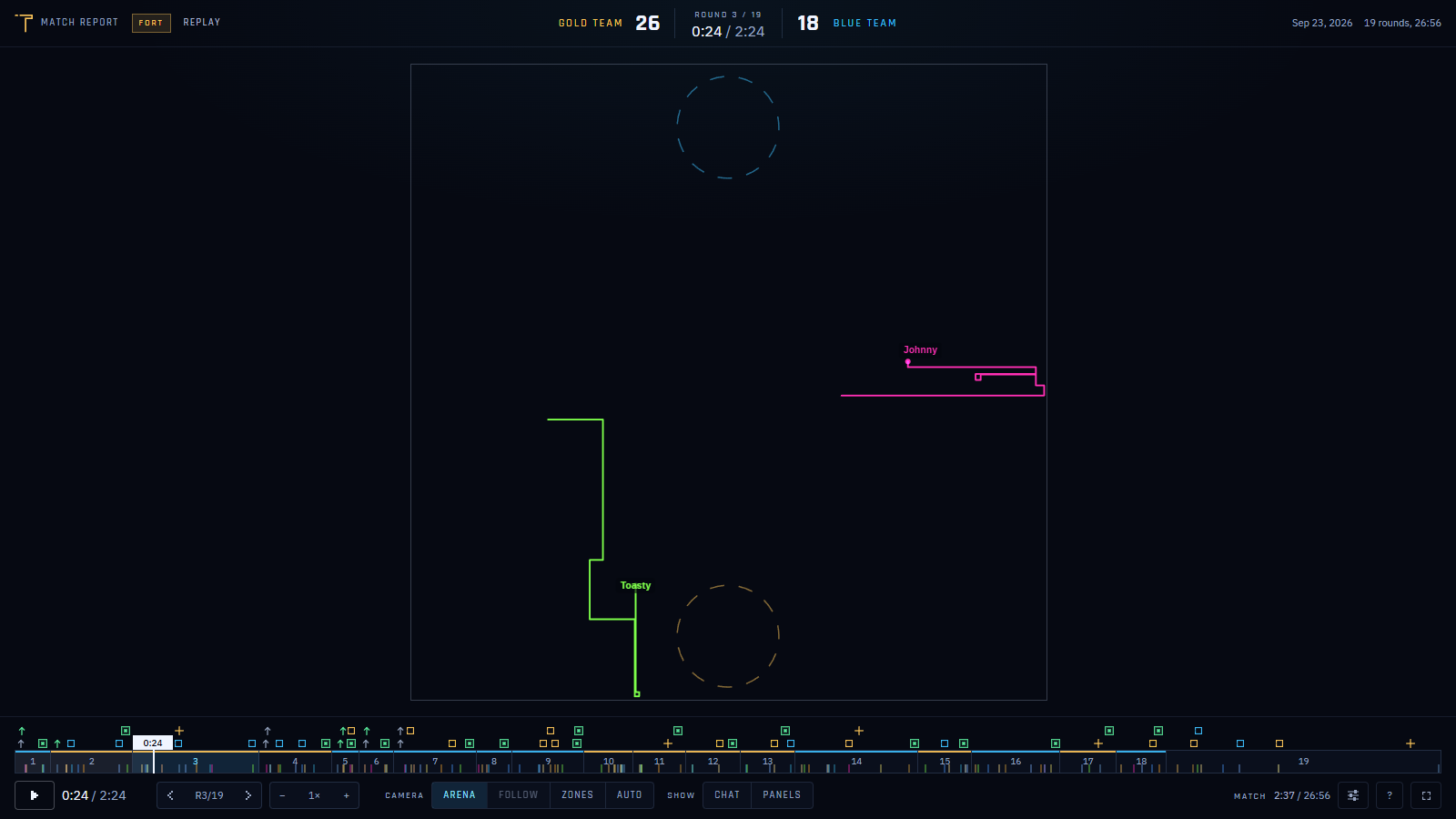
The replay opens on the Auto camera, which follows the action for you. Arena shows the
whole map, Follow stays on the players you pick, and Zones watches the zones. Press ? for
the keyboard shortcuts. Pause and copy the link to share that exact moment.
For content creators
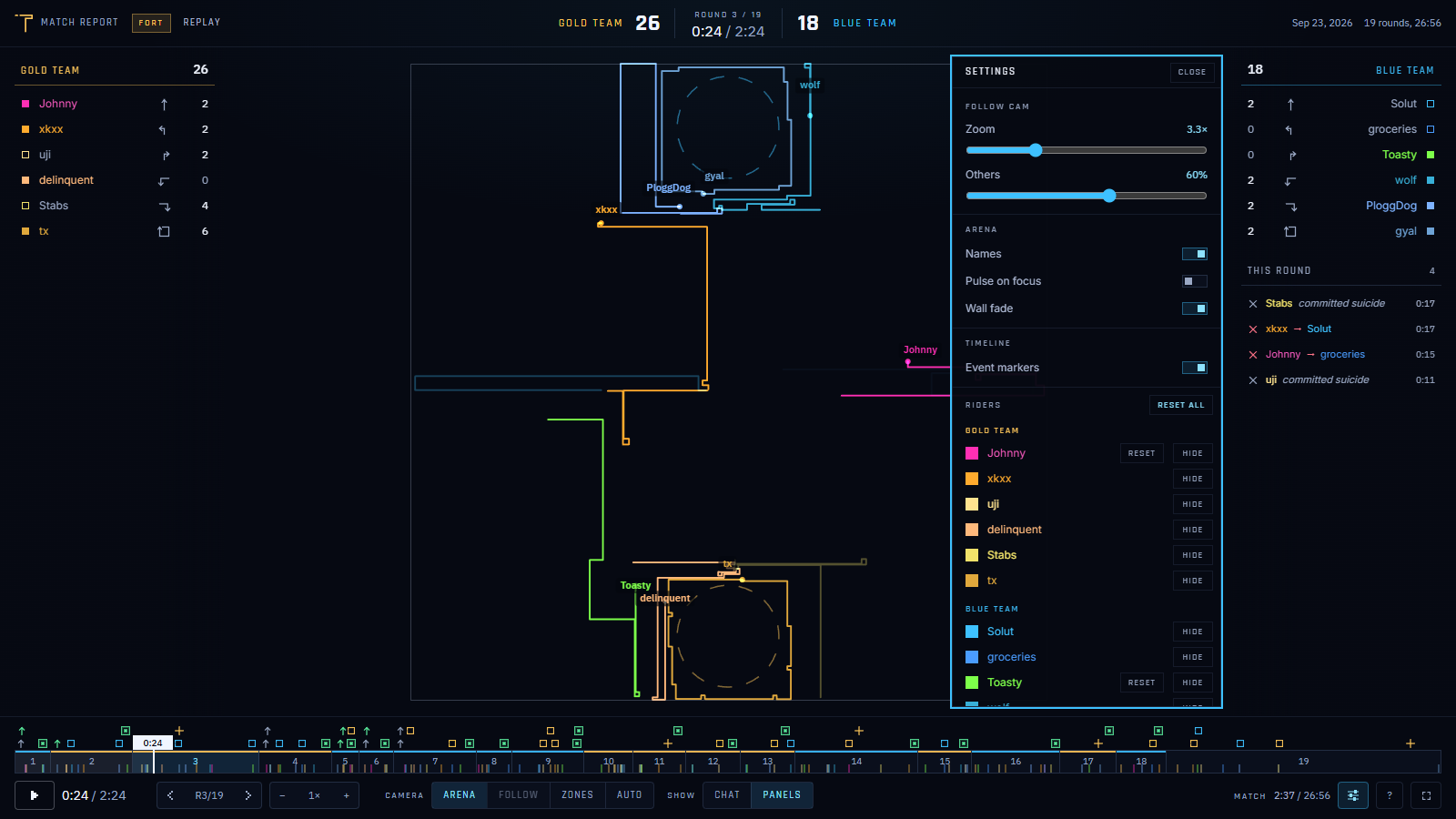
Press S to open the viewer settings.
- Recolor any player from their color swatch. Their walls, name and kill feed entries all change, and the color stays with that player in every replay you watch.
- Highlight players by clicking their rows in the roster, then switch to the Follow camera. Everyone else fades, as much as the Others slider says.
- Hide a player to remove their walls from the grid entirely. Hides reset when you reload the page.
For a clean frame, turn off names and chat, press Tab to hide the side panels, and go full
screen. The controls hide themselves when the mouse stops moving.
Live matches
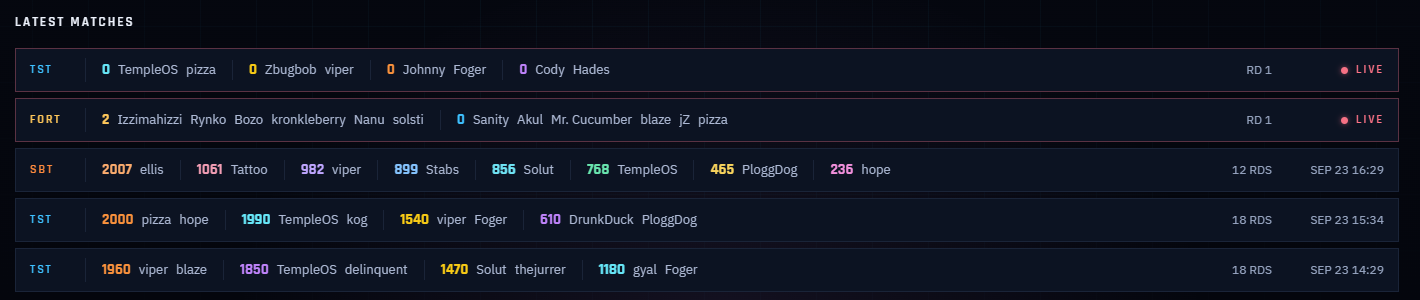
Matches being played right now appear at the top of Latest matches on the home page, marked LIVE. Click one to watch it in the same viewer, a few seconds behind the game. You can scrub back through anything you missed, and when the match ends the page takes you to its replay. No account needed.
Clips
Type /clip in game to save the last 30 seconds of the round, or /clip <name> to give it a
title. You need to be logged in on the server. You can also press Clip in any replay on the
site.
Tip: Create an instant chat of
/clipin game to save quickly!
New clips arrive on your profile, visible only to you. From there you can trim them, choose who the camera follows, pick a 1:1, 16:9 or 9:16 frame, and publish. Published clips show up in the Clips feed and on your profile's Clips tab, where you can pin your best ones to the top.
Other players' clips of you can also be seen on your profile by you only, with the option to make them visible on your profile to others.
Sharing and downloading
Any clip can be downloaded as a GIF or a 1080p, 60 fps MP4, from the clip editor or from the share menu in the feed.
Links to a published clip unfurl as the clip itself, playing as a GIF, in apps that show animated link previews.